Your first month-end on DIANO
Close your month in about an hour: make sure everything is in, reconcile the bank, check the VAT201 (Preview), look at your reports, and lock the month.
Before you start, have these ready
- Your bank statement for the month, downloaded from your bank's website as a CSV file.
- Any supplier invoices, receipts and slips you have not captured yet.
- Do month-end in the first week of the next month. Example: close September in the first week of October.
In this guide
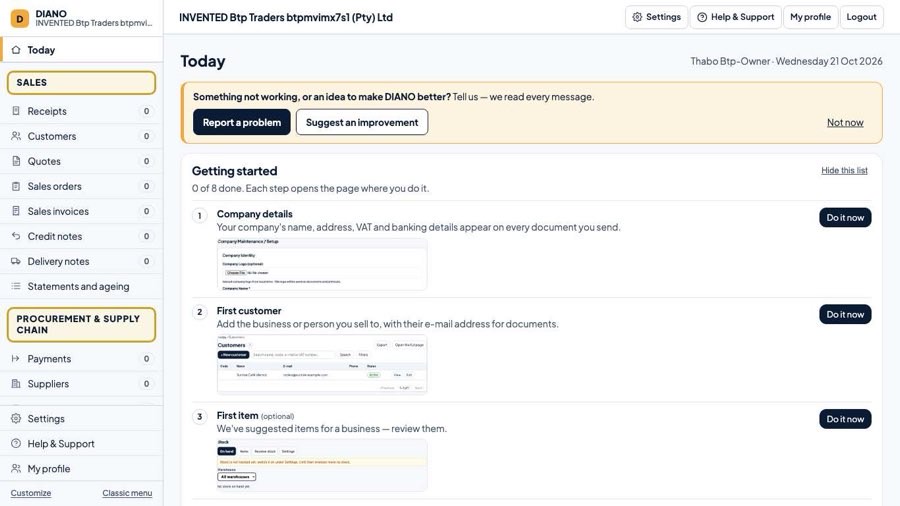
1. Check Today: what still needs attention
- Open Today. Look at Needs attention.
- Issue any draft invoices that should go out. Approve anything waiting for approval.
- Needs attention also shows earlier months that are still open.
2. Make sure everything is captured
- Sales: every invoice for the month is issued, and every customer payment is recorded under Receipts.
- Purchases: every supplier invoice is captured under Procurement & Supply Chain › Supplier invoices, and every payment under Payments.
- Accounting: every business expense is under Expenses. Journal entries are only for corrections your accountant asks for.
- HR: the month's payroll run is finalised (if you use payroll in DIANO).
3. Import the bank statement
Coming update
This part arrives with a coming update. If you don't see it in your menu yet, skip it for now.
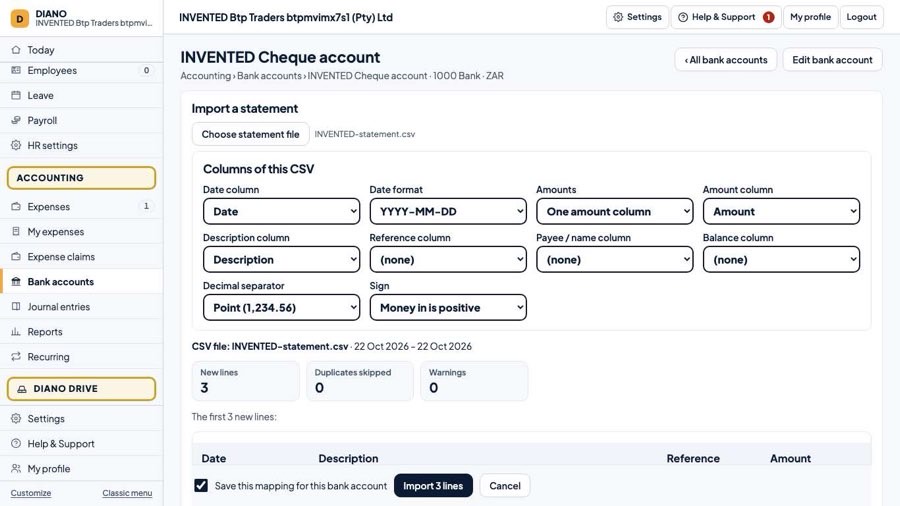
- Open Accounting, then Bank accounts, and open your bank account.
- Under Import a statement, press Choose statement file and choose the CSV file from your bank.
- The first time, tell DIANO which column is which (date, description, amount). Tick Save this mapping for this bank account.
- Press Import. DIANO skips lines it already has.
4. Match the lines and reconcile
Coming update
This part arrives with a coming update. If you don't see it in your menu yet, skip it for now.
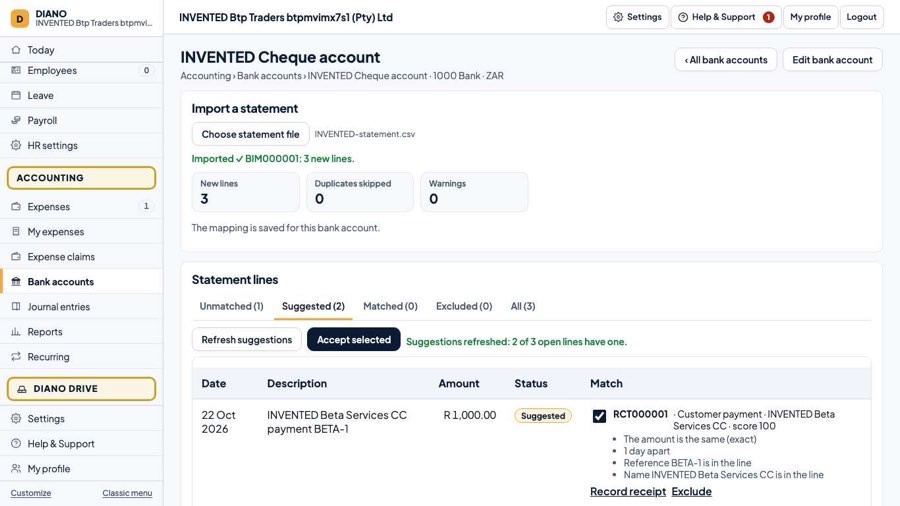
- Under Statement lines, open Suggested. DIANO suggests a match for each line it recognises, with its reasons.
- Tick the right matches and press Accept selected.
- Open Unmatched. For a line with no document yet, press Record receipt (money in), or Record supplier payment or Record expense (money out), then match it. Exclude a line that needs no document (for example a transfer between your own accounts), with a reason.
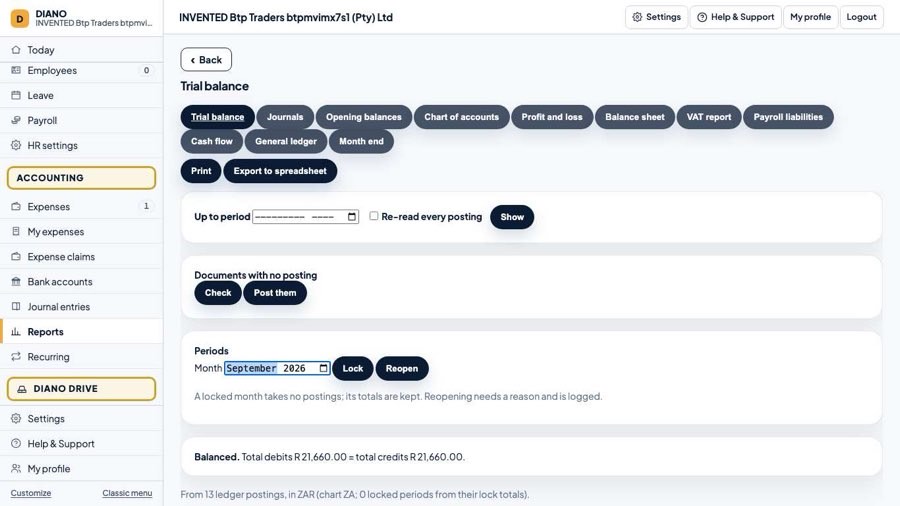
- When Unmatched is empty, open Reports, then Trial balance. Choose the month in Up to period and press Show. The bank account's balance must be the same as the closing balance on your bank statement.
Until Bank accounts is on your DIANO, tick off your bank statement against Receipts and Payments by hand.
More: Reconcile the bank
5. VAT201 (Preview), if your VAT period ends this month
Coming update
This part arrives with a coming update. If you don't see it in your menu yet, skip it for now.
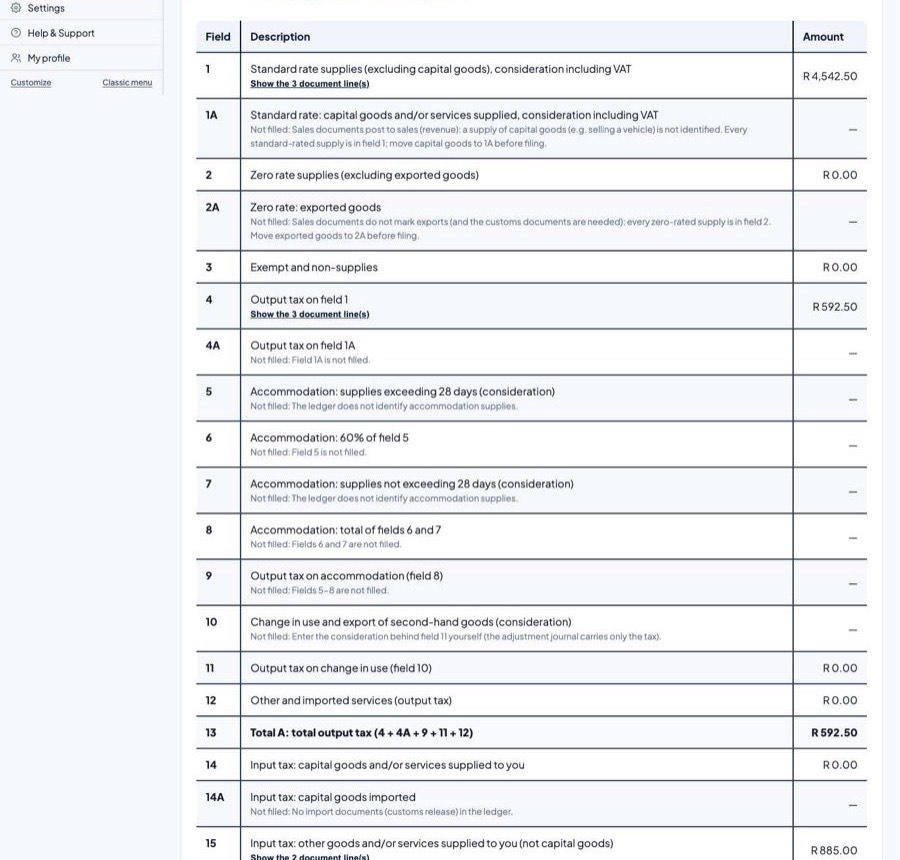
- Open Accounting, then Reports, then VAT201 return. Find the VAT period and press Open.
- Read the yellow Preview box: DIANO prepares the figures, but a registered tax practitioner has not yet checked how DIANO fills each field. Check them before you rely on them.
- Fix what DIANO lists under Needs your attention before you submit. Press Show the document line(s) under a field to see the documents behind it.
- When the figures are right, press Prepare (I have checked these figures). Press Values to type into eFiling, then submit on SARS eFiling yourself. DIANO never files anything with SARS.
- Back in DIANO, under Mark as submitted, fill in the date, the SARS reference and the proof (the eFiling confirmation), and press Mark as submitted.
Preview: check with your tax practitioner.
6. Look at your reports
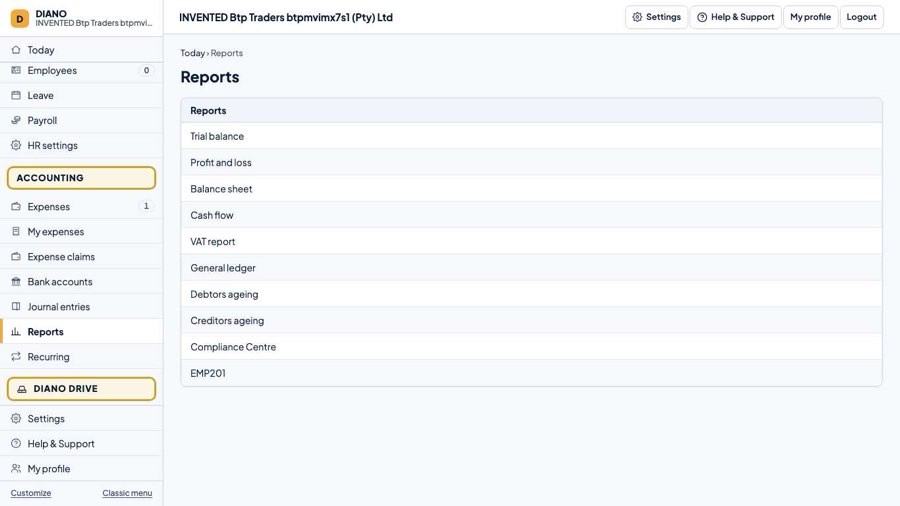
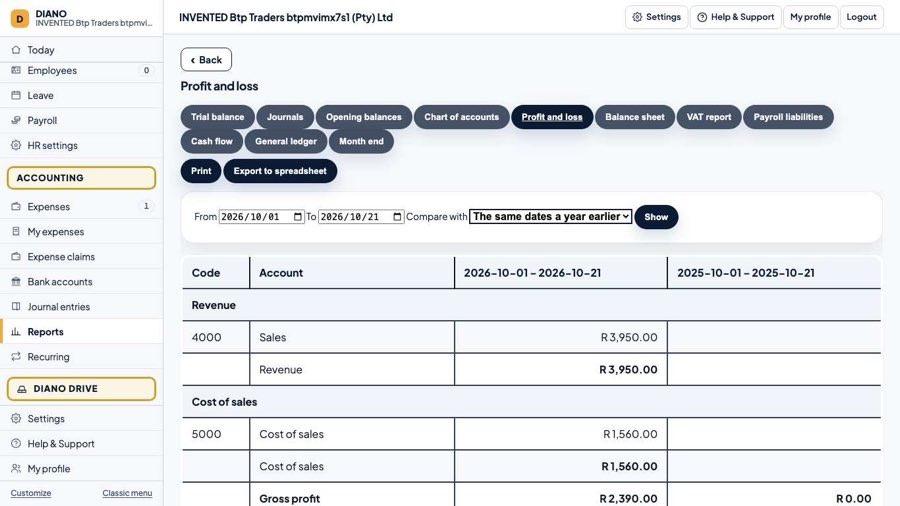
- Open Accounting, then Reports. The main ones are Trial balance, Profit and loss, Balance sheet and Debtors ageing.
- Profit and loss: did you make money this month?
- Balance sheet: what the business owns and owes.
- Debtors ageing: who owes you, and for how long. Follow up the old ones.
- Each report has Print and Export to spreadsheet, for your accountant.
7. Lock the month
- Open Accounting, then Reports, then Trial balance, and choose the Month end tab.
- Choose the month and press Show. Work through every check marked ⚠.
- When DIANO says the month is ready to lock, press Lock and confirm.
- A locked month takes no more postings, so its totals stay as you reported them.
- If something must change later, open the Trial balance tab. Under Periods, a Company Admin chooses the month, presses Reopen and types the reason. DIANO keeps a record of it.
Done? Check these off
- ☐ Everything for the month is captured.
- ☐ The bank is reconciled (or ticked off by hand).
- ☐ The VAT201 is checked and submitted on eFiling (if due).
- ☐ Your reports are printed or exported for your accountant.
- ☐ The month is locked.
Stuck?
Search the Help Centre (in DIANO: Help & Support, then Open the Help Centre), or open Help & Support in DIANO and press + New support request. Say which step of this guide you are on.
DIANO · Your first month-end on DIANO · checked 22 October 2026 · the screenshots show an INVENTED company